Write HTML faster with Emmet !
No one wants to be left behind, so it becomes a necessity to know some common shortcuts when writing an HTML file or a CSS file. But does it mean you need to improve your typing speed? Thats the scenario where Emmet comes to save the day !
What Emmet is?
In simple words Emmet is nothing but a shortcut language to help you write HTML faster.
You see HTML is simple, but with simplicity comes the headache of a lot of boilerplate code. Emmet shortcuts helps us to quickly generate this code using a few keyboard shortcuts on popular editors (eg: VS code).
You can say Emmet is autocomplete for HTML.
Why beginners find Emmet useful?
HTML is big. Making a website structure in HTML is slow and repetitive.
And as for most beginner, slow and repetitive is a secondary problem, the primary problem is making spelling mistakes. Emmet helps avoid it all.
<div id="greeting">
    <p>Hello Saurav</p>
</div>
Typing that took some time, because I have forgotten to put / in the closing tags, let us do it the emmet way !
div#greeting>p{Hello Saurav}
This might look scary at the beginning but trust the blog till the very end and you would be addicted to using emmets!
Using some common Emmet & Creating HTML elements
Before we get used to the shortcuts, lets know what different symbols inside the Emmet mean
| Symbol | Meaning | What it Creates |
| \> | child | Creates a nested element |
| + | sibling | Creates elements at the same level |
| * | repeat | Repeats an element multiple times |
| . | class | Adds a class to an element |
| # | id | Adds an ID to an element |
| [] | attributes | Adds one/multiple attributes to an element |
You would be seeing some common ways to use Emmets in the below code file.
div>p
<div>
  <p></p>
</div>

<-- 2 -->
h1+p
<h1></h1>
<p></p>

<-- 3 -->
li*3
<li></li>
<li></li>
<li></li>

<-- 4 -->
div.container
<div class="container"></div>

<-- 5 -->
section#hero
<section id="hero"></section>

<-- 6 -->
img[src="logo.png" alt="logo"]
<img src="logo.png" alt="logo">

<-- 7 -->
ul>li*3
<ul>
    <li></li>
    <li></li>
    <li></li>
</ul>

<-- 8 -->
!
<!DOCTYPE html>
<html lang="en">
<head>
    <meta charset="UTF-8">
    <meta name="viewport" content="width=device-width, initial-scale=1.0">
    <title>Document</title>
</head>
<body>

</body>
</html>
>goes inside,+stays beside,*repeats,.is class,#is ID,[]is Add attributes
How Emmet works inside code editors?
Emmet is built into most modern editors
Works automatically inside:
VS Code (recommended)
Sublime Text
Atom
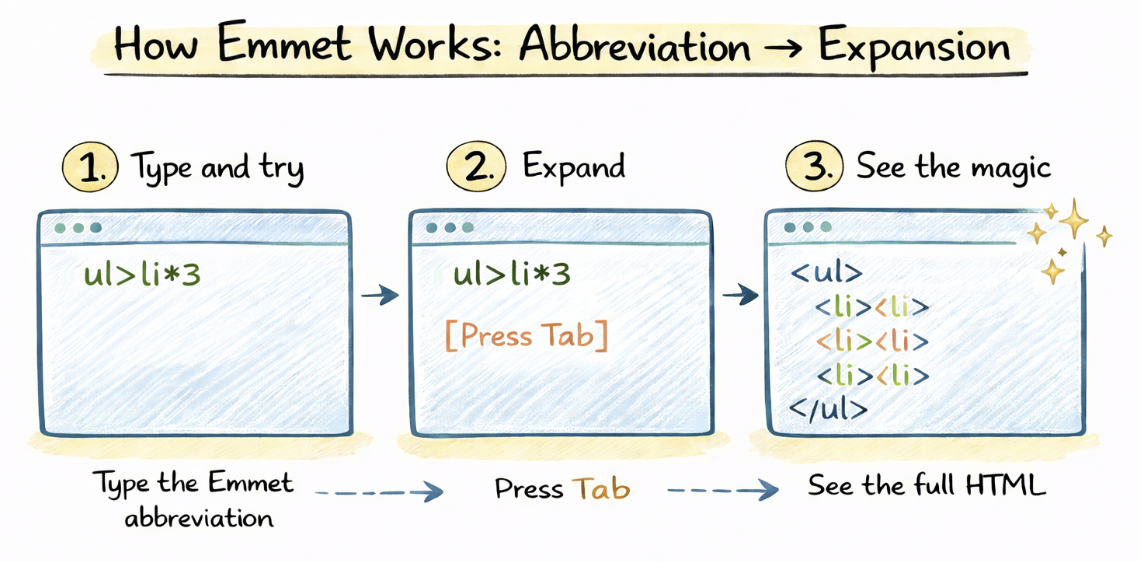
How it works:
You type an Emmet abbreviation
Press Tab or Enter
Editor expands it into HTML
However emmet offers wide range of tweaks you can use to fine-tune your plugin experience. Almost all officially developed editor plugins (except PSPad and browser-based) has extensions support: a special folder where you can put json and js files to extend Emmet. Please refer to README file bundled with your editor’s plugin to find out where Emmet looks for extensions.
Each .js file located in extensions folder will be loaded and executed on plugin start-up. Use js files to create your own filters or actions: you can use Emmet modules and bindings to script your editor with JavaScript.
With .json files you can fine-tune different parts of Emmet toolkit:
Conclusion
Emmet is one of the few shortcuts you can chose to totally ignore and you would still be fine, however learning Emmet gives you the superpower to be 10x faster. Do you want to stay stuck spending time writing boilerplate code with risks of spelling mistakes or do you want the optimise way. The choice is yours


